For MSPs who document in IT Glue or Hudu

Network diagrams that fit your IT Glue and Hudu documentation

Updated

Start from the devices already documented for a client, draw their network with real ports, VLANs and cabling, and keep the diagram in their IT Glue or Hudu documentation as an image that opens again to edit. No API keys, and client data never reaches our servers.

Beta The IT Glue and Hudu import and export are new. If a client's export doesn't come in cleanly, send it to us and we'll fix it.

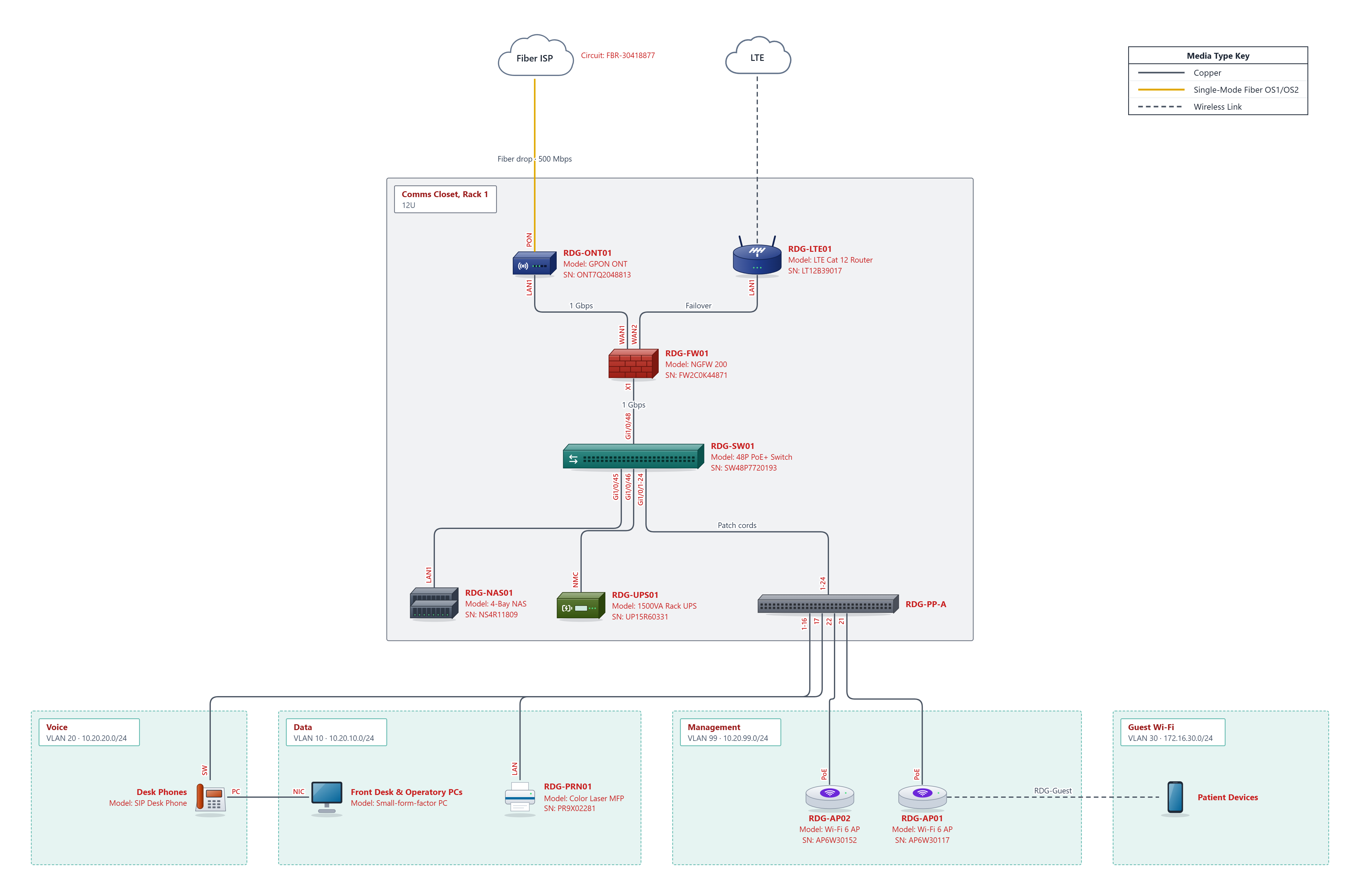
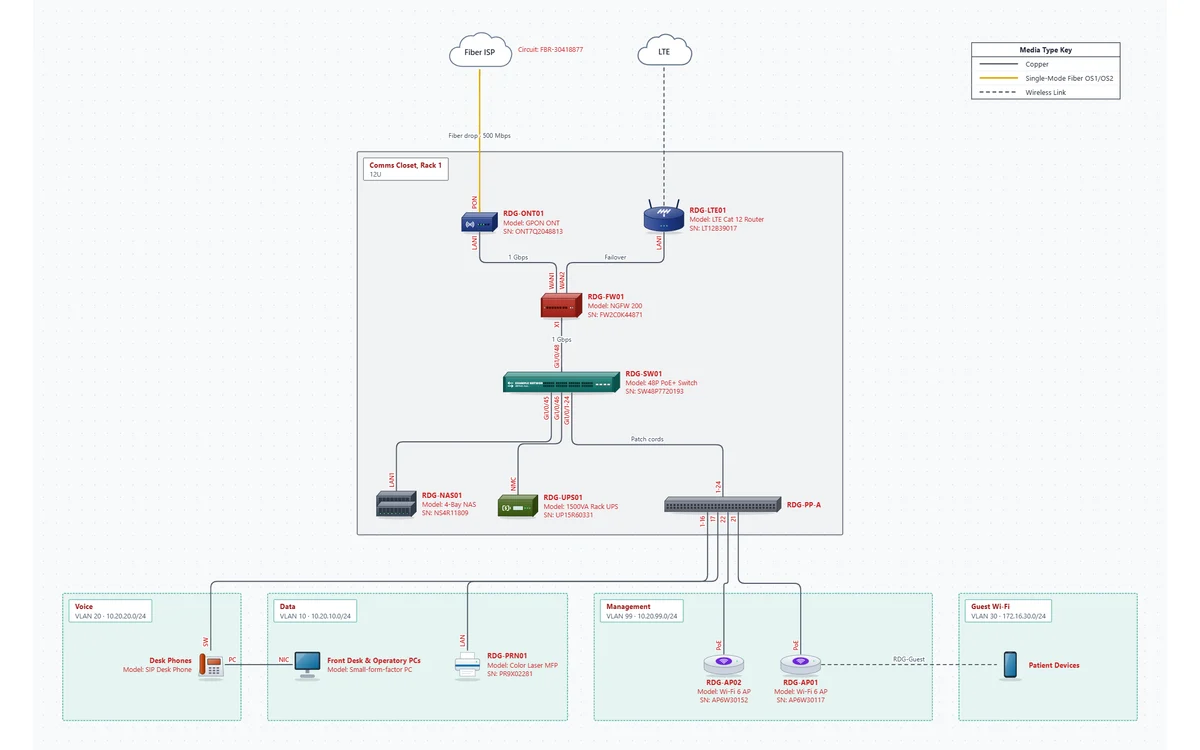
An MSP client site: fiber ISP and LTE failover into a firewall in a comms closet rack with a switch, patch panel, NAS and UPS, feeding voice, data, management and guest Wi-Fi VLANs

From the client's documentation to a diagram, and back

  1. 1

    Import what's already documented

    Export the client's configurations from IT Glue, or their assets from Hudu, and open the CSV in Import > Add devices in bulk. Names, types, IPs, serials, MACs, makes and models come across; inactive and archived devices are left out, and the client's name becomes the diagram's Customer.

  2. 2

    Draw the network

    Drop the devices into the closet, rack and VLAN areas, cable them port to port, and let Auto-arrange lay out the page. The network check flags duplicate IPs, reused ports and devices outside their VLAN's subnet. Have switch access? Paste CDP / LLDP output to get the cabling too.

  3. 3

    Keep it in their documentation

    Export a PNG and upload it to the client's IT Glue or Hudu page. The whole diagram is saved inside the image, so whoever opens it in NetworkSketch next year gets every device and cable back, ready to edit.

  4. 4

    Send new devices back

    Export > IT Glue CSV writes the devices in IT Glue's own import format, with the client as organization and each device's site as its location, for a new site you planned before it existed in IT Glue.

  5. 5

    Hand over the paperwork

    A PDF with your logo and title block: the diagram, the device inventory, the cabling schedule and the VLAN / subnet table. See a sample handover PDF.

What moves between them

IT GlueHudu
Import devices from an exportConfigurations CSV: name, type, primary IP, MAC, serial, asset tag, manufacturer, model, OS, location and positionAsset CSV from any layout: company, name, and IP, serial, manufacturer, model, location and type columns matched by name
Left out on importInactive and retired configurationsArchived assets
Client nameOrganization becomes the CustomerCompany becomes the Customer
Export devices for importIT Glue CSV, in IT Glue's configuration import columnsDevices CSV, to map to your asset layout
Keep the diagramEditable PNG: upload it as a file, open it again in NetworkSketch to edit

IT Glue matches imports by name, so organizations, locations and configuration types in the CSV should be spelled the way they are in your IT Glue account.

Built for how MSPs work

No keys to hand over

It reads the export files IT Glue and Hudu already make. There's no API key to create, rotate or trust a vendor with.

Client data stays with you

Imports and diagrams are read and drawn in your browser and saved where you choose. Our servers never receive a client's devices, IPs or circuits. Security details.

One template per client site

The MSP client template has the circuits, closet rack, VLANs and labeled cabling of a typical small office, ready to rename and fill in.

Your branding on the handover

Your logo and title block on every PDF page, so the client gets a document from you, not from a drawing tool.

Questions

Does NetworkSketch connect to my IT Glue or Hudu account?

No. It works with the export files both tools already make, so there are no API keys to create or store, and your clients' device lists are read in your browser, never on our servers.

Does the Hudu import work with my own asset layouts?

Yes. Hudu exports always carry the company and asset name; the other columns come from your layout, and the usual ones (IP address, serial number, manufacturer, model, location, asset type) are matched by name. Anything else can be typed or pasted into the import grid, and archived assets are left out.

Can I keep the diagram in IT Glue or Hudu and edit it later?

Yes. Every PNG NetworkSketch exports carries the whole diagram inside it. Upload it as a file (an attachment or an uploaded image) and open the downloaded copy in NetworkSketch later to edit it. Images pasted from the clipboard, or resized by the tool you upload to, lose the diagram, and NetworkSketch tells you when that has happened. How the file is stored.

Is this the same as Network Glue?

No. Network Glue discovers what's on a network. NetworkSketch is for the diagrams you design and hand over: sites, closets and racks, ports and cabling, VLANs and subnets, with a PDF that has your logo, an inventory, a cabling schedule and a VLAN table. Many MSPs use a discovery tool and a drawing tool side by side.

Is the IT Glue and Hudu support finished?

The IT Glue and Hudu import and the IT Glue CSV export are in beta. They're built from both tools' published file formats, but every MSP's data is a little different: if a client's export doesn't come in cleanly, or IT Glue rejects the CSV, email the file or the error to support@networksketch.com (client names scrubbed is fine) and we'll fix it. Editable PNGs aren't part of the beta; they work with any tool that keeps the file as uploaded.

What does it cost?

The 14-day trial has every feature, with no card. After it, the Free plan keeps diagrams of up to 10 devices on one page with PNG export. Pro, at $9 a month billed yearly or $15 month to month, adds unlimited devices and pages, imports, the PDF and the CSV exports. A Teams plan with per-seat billing on one invoice is coming; ask us if you need it for your techs. Pricing.

IT Glue and Network Glue are trademarks of Kaseya; Hudu is a trademark of Hudu Technologies. NetworkSketch isn't affiliated with or endorsed by either.
Your next client diagram, from what's already in IT Glue or Hudu.

Open the MSP client template, or start blank and import the client's devices.

Open the MSP client template