Updated
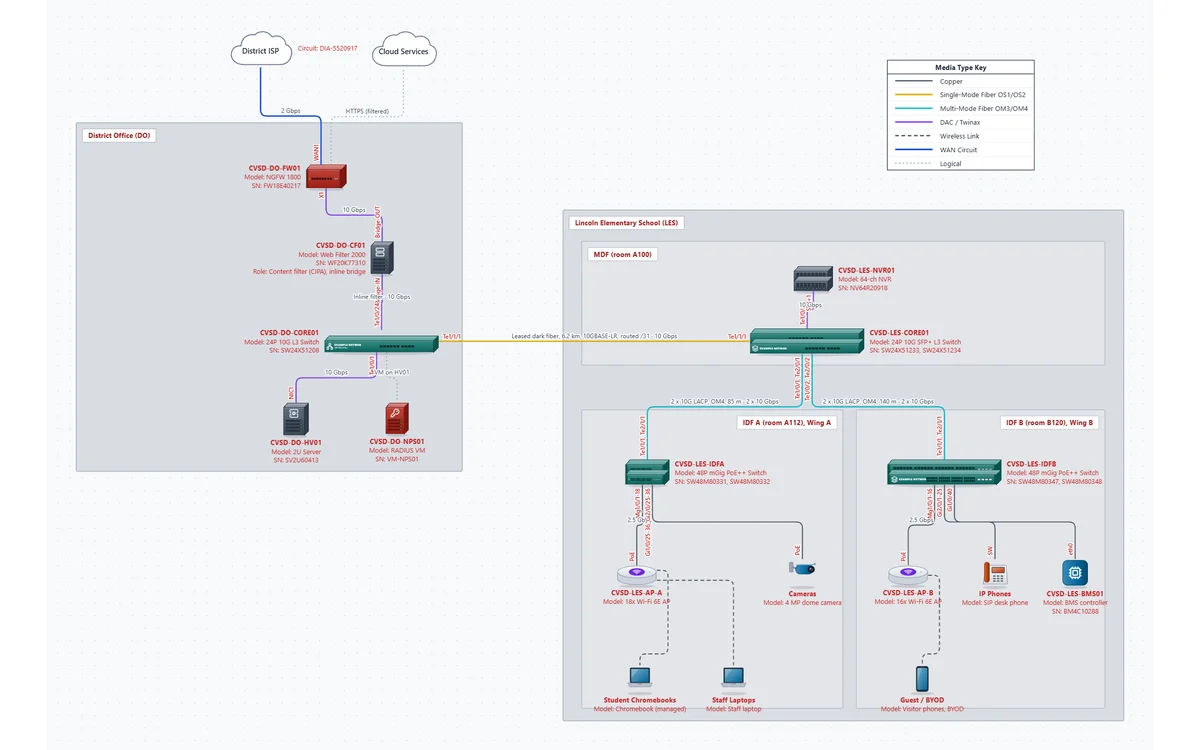
A small district drawn the way many are built: the internet edge, the content filter and the servers live at the district office, and the school reaches them over leased dark fiber. Inside the school, an MDF and two IDFs on OM4 fiber, an access point in every classroom for 1:1 Chromebooks, cameras, phones and the building controls, each in its own VLAN. A second page shows the same network as subnets and gateways.
Two pages in one file: the physical network and the VLANs. Devices on both pages share hostnames and IPs.
A 2 Gbps DIA circuit into the district firewall, an inline content filter between the firewall and the core (so it sees student IPs before NAT), a 10G core, a virtual host running two domain controllers with DHCP, the phone system and the camera software, and a RADIUS server for 802.1X.
Leased dark fiber, 6.2 km, from the district core to the school core at 10 Gbps (10GBASE-LR), routed as a /31, with the loss test result on the link.
A two-member 10G core stack and a 64-channel NVR in the MDF. Each IDF is a two-member 48-port multigig PoE++ stack on a 2 x 10G LACP uplink over OM4 (85 m and 140 m).
34 Wi-Fi 6E APs (one per classroom, plus the gym, library and cafeteria) with three SSIDs, 24 cameras, desk phones, a building management controller, about 520 Chromebooks, staff laptops and guest devices.
One /16 per site (10.1.0.0/16 for the district office, 10.2.0.0/16 for Lincoln Elementary), with the VLAN ID in the third octet so a tech can read the VLAN off any address. Gateways are SVIs on the school core. DHCP comes from the district domain controllers through an ip helper, so a school whose WAN link is down loses DHCP too; if that worries you, run a DHCP failover partner at each school.
| VLAN | Name | Subnet | Gateway | DHCP | What's on it |
|---|---|---|---|---|---|
| 10 | Staff | 10.2.10.0/24 | 10.2.10.1 | District DCs, 8 h | Staff laptops (802.1X on the CVSD-Staff SSID), office PCs, printers |
| 20 | Students | 10.2.20.0/22 | 10.2.20.1 | District DCs, 4 h | 1:1 Chromebooks (802.1X on the CVSD-Student SSID). A /22 has 1,022 usable addresses |
| 30 | Guest / BYOD | 172.16.0.0/22 | 172.16.0.1 | District DCs, 1 h | Visitors and personal devices. Client isolation, internet only, still filtered |
| 40 | Voice | 10.2.40.0/24 | 10.2.40.1 | District DCs, option 66 | Desk phones, put in the VLAN by LLDP-MED |
| 50 | Cameras | 10.2.50.0/24 | 10.2.50.1 | Reservations | 24 cameras and the NVR, which records at the school |
| 60 | Building systems | 10.2.60.0/24 | 10.2.60.1 | Static | HVAC, bells and PA, door access controllers |
| 99 | Management | 10.2.99.0/24 | 10.2.99.1 | Reservations | Switches and APs (native VLAN on AP ports) |
| 100 | DO servers | 10.1.100.0/24 | 10.1.100.1 | Static | Domain controllers, RADIUS, phone system, camera software |
Check your own plan for overlaps and wasted space with the VLSM planner and the IP plan checker; the subnet calculator shows the usable hosts for each prefix.
| Role | Example spec in the template | Why |
|---|---|---|
| District firewall | NGFW with 10G interfaces | Every school shares this internet edge, so size it for the district's peak, not one building |
| Content filter | Inline appliance in bridge mode, policies by VLAN and directory group | Filtering for every device on the network, with logs that name the device or user |
| School core | Two-member stack, 24 x 10G SFP+ | Gateways for every VLAN and 2 x 10G to each IDF, with one member allowed to fail |
| IDF switches | Two-member stacks, 48 x multigig PoE++ | 2.5 Gbps ports for Wi-Fi 6E APs, and enough PoE for APs and cameras at full allocation |
| Access points | Wi-Fi 6E, one per classroom | 25 to 35 clients per room, all streaming or testing at once |
| NVR | 64 channels, 8 x 12 TB, RAID 6 | Records at the school, so video doesn't cross the WAN |
Students and staff connect with similar devices to the same APs, so segment by identity, not by SSID alone. With 802.1X, the RADIUS server returns the VLAN by directory group: staff land in VLAN 10, students in VLAN 20. On the core, students reach the internet (through the filter), the district's learning apps and the printers they need, and nothing else: not staff, not management, not cameras or building controls. Cameras talk only to the NVR and the camera software; building controllers talk only to the facilities vendor's remote access path. Management (VLAN 99) is reachable from IT workstations only. On a flat network, a curious student is one browser tab away from a switch login page.
A school or district that takes E-Rate discounts for internet access or any Category Two service (internal connections and their maintenance) must certify that it complies with the Children's Internet Protection Act (CIPA). That means an internet safety policy, which for schools includes monitoring minors' online activities and teaching appropriate online behavior, adopted after a public hearing or meeting; and a technology protection measure (a filter) that blocks visual depictions that are obscene or child pornography, and, on computers minors use, harmful to minors. See USAC's CIPA page for the exact requirements.
On the network, that means every path to the internet goes through the filter, including guest Wi-Fi and any school with its own internet breakout. Inline before NAT (as drawn) lets the filter log which device or user went where. Filtering HTTPS by more than the domain name needs a trusted certificate on the device, which managed Chromebooks and staff laptops can get from device management; guests can't, so their filtering stays at the domain level. Chromebooks that go home need a filter that goes with them, such as an agent or a cloud filter, because the appliance only sees traffic on the district network.
With 1:1 devices a classroom is 25 to 35 clients that start a video or an online test at the same moment. Coverage is easy; capacity is the problem. The usual 1:1 design is one AP per classroom, mounted in the room rather than the hallway, with transmit power turned down so neighboring rooms don't hear each other, and 20 or 40 MHz channels on 5 GHz (and 6 GHz where the devices support it) so there are enough channels to go around. Gyms, cafeterias and libraries need more than one AP. Confirm with a predictive survey, and walk it after install.
IEEE 802.3af gives up to 15.4 W per port at the switch, 802.3at (PoE+) 30 W, and 802.3bt 60 W (Type 3) or 90 W (Type 4). Wi-Fi 6E and Wi-Fi 7 APs often need PoE+ or more to run every radio. IDF A in the template has 18 APs and 24 cameras: at full class allocation that's 18 x 30 W + 24 x 15.4 W, about 910 W, against 1,480 W for the two-member stack. Check yours with the PoE budget calculator, and check each stack member too: a member's power supply only feeds its own ports.
A copper channel is 100 m: up to 90 m of permanent link plus 10 m of patch cords. A classroom farther than that from its closet needs another IDF, not a longer cable. Between closets in a building, OM4 multimode carries 10GBASE-SR up to 400 m; between buildings or to the district, use single-mode (10GBASE-LR reaches 10 km). Uplink each IDF with two fibers into two core members, so one failed optic or switch doesn't take a wing offline during state testing. Record the loss on each link; the fiber loss calculator gives you the budget to test against.
Category 2 covers internal connections: the equipment that brings broadband into classrooms. The FCC's funding year 2026 Eligible Services List includes switches, routers, access points and wireless controllers, cabling, racks, caching, UPS and battery backup, and firewalls (basic firewall functions; advanced security features such as intrusion prevention are not eligible and are cost-allocated out). Content filters, cameras, phones and end-user devices such as Chromebooks are not on the list, and the share of a switch or UPS that serves them, such as PoE ports for cameras, generally has to be cost-allocated out too. The list changes every funding year, so check the current one on USAC's eligible services page or with your E-Rate consultant. A diagram with the model, quantity and location of every switch and AP is also what you want for the bid, and for an audit later.
Name closets by room number, not "IDF 2", and put the room in each switch's location field. Give every AP the classroom it serves. Label fiber by both ends and keep its test result. Most school network work happens in the summer, often by a contractor who has never been in the building.
Bring the closet list, the switch configs and the floor plan.
Click Open this template. No account needed; nothing you type leaves your computer.
In Document Settings, enter the district, school and address for the title block. Rename the site and room areas to your buildings and closet room numbers.
Add a room area for each IDF and move its switch into it. Set each uplink's fiber type, length, ports and test result.
Set the AP, camera and phone groups to your counts, with the switch ports they use. Split a group per wing if that's how you troubleshoot.
On the Logical page, set each VLAN's subnet, gateway and DHCP source, then click Check to find duplicate IPs and addresses outside their subnet.
Mark verified today and export the PDF with the device inventory, cabling schedule and VLAN table, for the summer contractor, the E-Rate bid or the auditor.
Every template opens in the same editor, so you can copy devices and areas from one into another.
Schools that take E-Rate discounts for internet access or any Category Two service must certify CIPA compliance: an internet safety policy, a filter that blocks obscene images, child pornography and (on computers minors use) images harmful to minors, monitoring of minors' online activities, and teaching appropriate online behavior. Many states add their own rules. See USAC's CIPA page.
For 1:1 devices, plan one AP per classroom, mounted in the room. Large shared spaces such as the gym, cafeteria and library need two or more. A predictive survey, and a walk-through after install, tell you whether the plan works in your building.
Yes. Put them in separate VLANs (802.1X can assign the VLAN by directory group on the same SSID), and allow students only the internet through the filter and the services they need. Cameras, building systems and switch management get their own VLANs that students can't reach.
On the funding year 2026 Eligible Services List, internal connections such as switches, routers, access points, cabling, caching, UPS and basic firewall functions are eligible; content filters, cameras, phones and student devices are not. The list changes each funding year, so check the current one with USAC or your E-Rate consultant.
Opening and editing it in your browser is free, with no account. Saving the file and exporting the PDF need the free 14-day trial (just your email, no credit card). After that, editing it needs Pro: it has 34 devices on two pages, more than the Free plan's 10 devices on one page. Pro is $9 a month billed yearly, or $15 month to month, and CallSketch is included.
No. The editor runs in your browser and diagrams are saved as files on your computer, so our servers never receive them. Security details.
No signup to look around. Rename the buildings and closets, set your VLANs, and start the trial when you want the PDF.
Open this template