SD-WAN network diagram template

SD-WAN network diagram template for a headquarters and its branches

Updated

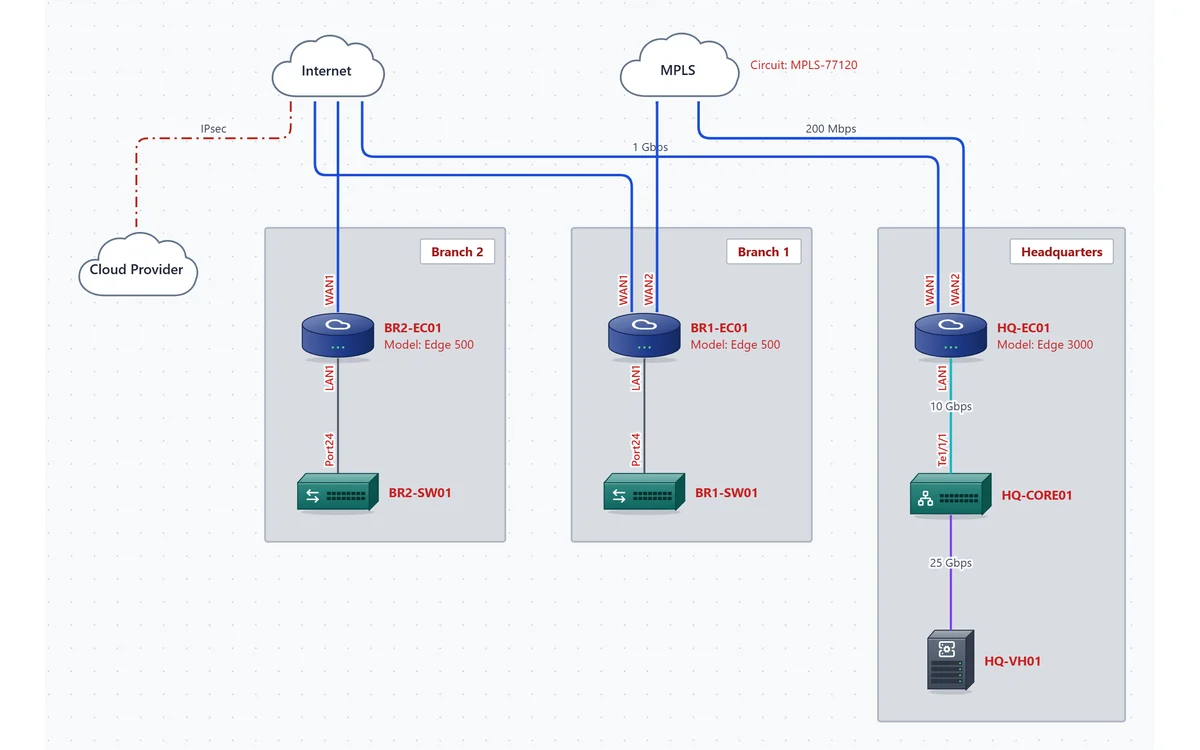
Three sites on one WAN overview page: headquarters and Branch 1 on an Internet circuit and MPLS, Branch 2 on Internet only, and a cloud provider reached over an IPsec tunnel. Each site has its SD-WAN edge with the WAN ports labeled, the LAN switch behind it and a management IP plan you can read at a glance.

On your phone? The editor is made for a computer. Email yourself a link and open the template at your desk. Email me a link for my computer
Opens the real editor in your browser. No account needed to look around; the free 14-day trial (no credit card) adds saving and PDF export.
Multi-site SD-WAN template: headquarters and two branches with SD-WAN edges connected over the Internet and MPLS, plus a cloud provider over a VPN

What's in this template

One page, laid out automatically the first time you open it.

Headquarters

Edge HQ-EC01 with Internet on WAN1 (1 Gbps) and MPLS on WAN2 (200 Mbps), a 10 Gbps OM3/OM4 uplink to the HQ-CORE01 layer 3 switch, and a virtualization host (DC01, FS01, APP01) on 25 Gbps DAC.

Two branches

BR1-EC01 on both Internet and MPLS, BR2-EC01 on Internet only, each with its switch on LAN1 to Port24, inside a site area that carries the street address.

Cloud over VPN

A cloud provider (region us-east) joined to the Internet by a dashed IPsec link, so the tunnel reads differently from the circuits.

Addressing by site

Management IPs follow the site: 10.10.1.x at headquarters, 10.20.1.x at Branch 1, 10.30.1.x at Branch 2. The MPLS cloud carries its circuit ID.

Underlay and overlay: draw both, separately

The underlay is the transport you pay for: each Internet circuit, MPLS port and LTE line, with a provider, a circuit ID, a bandwidth and a handoff port. The overlay is what the SD-WAN builds on top of it: tunnels between edges, hub-and-spoke or mesh, and the paths into the cloud. Most unreadable SD-WAN diagrams are the two drawn on top of each other.

In the template, circuits are WAN links and the cloud path is a VPN link, each in its own line style, and the media type key lists only what the page uses. For a real network, keep this page as the underlay and add a second page for the overlay, with VPN links between the edges the way your tunnels actually run. Page Link shapes join the two, and it's still one file and one PDF.

What to record for each circuit

DetailWhere it goesWhy it matters
Provider and circuit IDAn ISP / Carrier device per circuit: Circuit IDThe first thing the carrier asks for when you open a ticket
BandwidthBandwidth on the carrier, speed on the linkExplains why traffic prefers one path
Public IP blockPublic IP block on the carrierNeeded for tunnel peers, allow-lists and DNS
Support phone and accountSupport phone / account # on the carrierSaves a search in the middle of an outage
Edge portThe port label at the edge end of the link (WAN1, WAN2)Tells the person on site which cable is which

The template uses shared Internet and MPLS clouds to keep the overview simple, and those clouds don't hold per-circuit details. When you adapt it, give each site's circuit its own ISP / Carrier device (the campus template does this) so every circuit ID ends up in the PDF inventory.
How to adapt it to your network

Start with the sites you have; you can add branches by copying one.

  1. 1

    Open the template

    Click Open this template. The page arranges itself on first open; no account needed.

  2. 2

    One area per site

    Rename Headquarters and the branches and set their addresses. Select a branch area and press Ctrl+D to duplicate it for the next site.

  3. 3

    Put each circuit on the map

    Add an ISP / Carrier device for each circuit with its circuit ID, bandwidth, public IPs and support number, and label the edge end WAN1, WAN2 or LTE.

  4. 4

    Add the overlay

    Add a page named "Overlay" and draw VPN links between the edges as your tunnels run. Link the pages with Page Link shapes.

  5. 5

    Check the addressing

    Set each edge's management IP and the site subnets, then click Check. Duplicate IPs are caught across pages, IPv6 included.

  6. 6

    Export

    The PDF lists every edge with model and serial in the inventory, and every circuit and cable with its ports in the cabling schedule.

Related templates

Every template opens in the same editor, so you can copy devices and areas from one into another.

Questions

Does it work for my SD-WAN vendor?

Yes. The SD-WAN edge is a vendor-neutral device with model, serial, OS version and management IP fields, so it fits any vendor's appliance or virtual edge.

Can I document dozens of branches?

Put a WAN overview on the first page and one page per region or per site, joined with Page Link shapes. To add many devices at once, paste rows from a spreadsheet instead of drawing each one.

Should the overlay tunnels go on the same page as the circuits?

For two or three sites it can work. Past that, a separate overlay page stays readable: the circuits page answers "what do we pay for and where does it land", the overlay page answers "how does traffic get between sites".

Is the template free to use?

Opening and editing it in your browser is free, with no account. Saving the file and exporting the PDF need the free 14-day trial (just your email, no credit card). After that it stays free to edit on the Free plan: it has 7 devices on one page, within the Free plan's 10. Pro, at $9 a month billed yearly or $15 month to month, adds the PDF and has no limits, and CallSketch is included.

Open the SD-WAN template in your browser.

No signup to look around. Rename the sites, add your circuits, and start the trial when you want the PDF.

Open this template