Home network diagram template

Home network diagram template, with a home lab

Updated

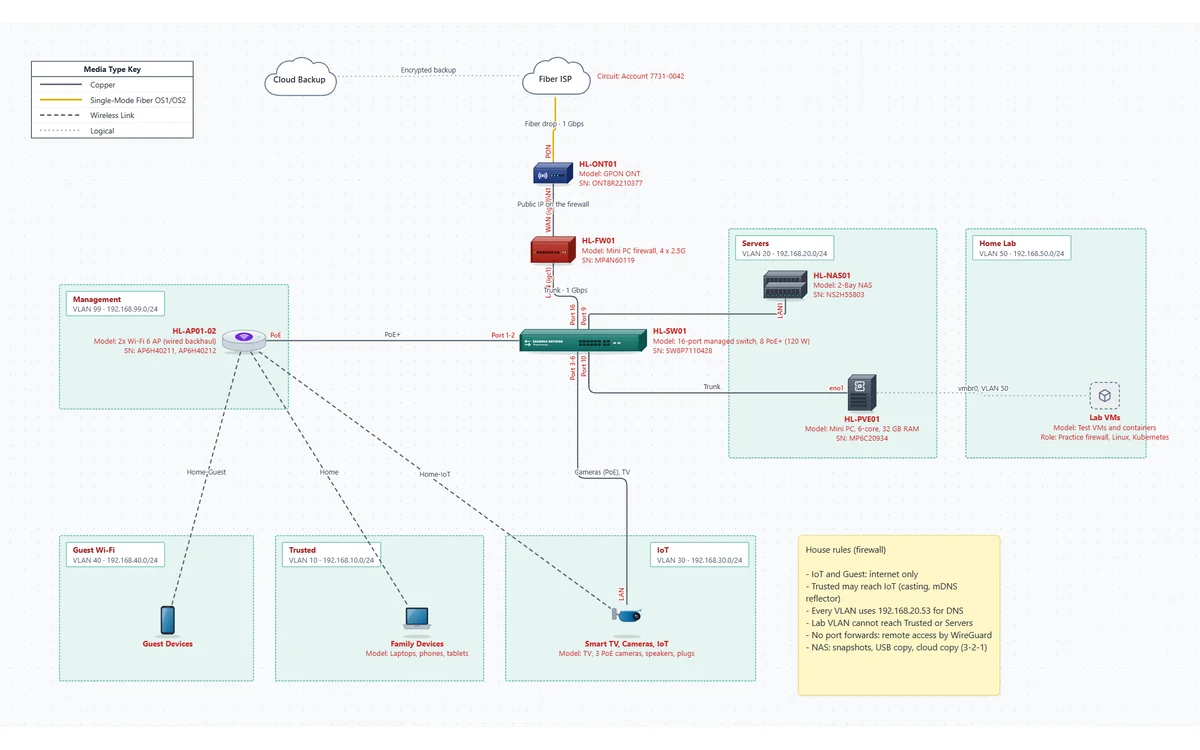
A home network drawn the way people who run a home lab set it up: the ISP's ONT into your own firewall (one NAT, not two), a managed PoE switch, two access points, a NAS and a mini-PC server running the DNS ad-blocker and containers. Trusted devices, IoT, guests, servers and lab VMs each get a VLAN. It has 10 devices on one page, so it fits the Free plan.

On your phone? The editor is made for a computer. Email yourself a link and open the template at your desk. Email me a link for my computer
Opens the real editor in your browser. No account needed to look around; the free 14-day trial (no credit card) adds saving and PDF export.
Home network and home lab template: a fiber ISP and cloud backup, the ONT into a mini-PC firewall and a managed PoE switch, two access points on a management VLAN serving guest, trusted and IoT Wi-Fi, and a servers VLAN with a NAS and a hypervisor that hosts lab VMs on their own VLAN

What's in this template

One page. Family devices, IoT and guests are grouped with a count, so the diagram stays readable and within the Free plan.

Internet edge without double NAT

A 1 Gbps fiber ISP, the ISP's ONT as a bridge, and a mini-PC firewall holding the public IP. It routes every VLAN, runs DHCP for each and is the WireGuard VPN endpoint. No port forwards.

Switch and Wi-Fi

A 16-port managed switch with 8 PoE+ ports feeding two Wi-Fi 6 APs with wired backhaul and three PoE cameras. Three SSIDs: Home, Home-IoT (2.4 GHz) and Home-Guest, each on its own VLAN.

Servers and home lab

A 2-bay NAS (mirrored, with snapshots) and a mini-PC hypervisor running the DNS ad-blocker at 192.168.20.53, home automation and a media server, with lab VMs tagged onto VLAN 50.

House rules on the page

A note lists the firewall rules: IoT and guests to the internet only, the lab can't reach trusted devices or servers, every VLAN uses the home DNS, and backups follow 3-2-1.

Addressing plan

The third octet matches the VLAN ID, so an address tells you which network a device is on. The template avoids 192.168.0.0/24 and 192.168.1.0/24: those are the defaults on most ISP routers, and a VPN from a café or a relative's house that uses the same range won't reach your devices at home.

VLANNameSubnetGatewayDHCPWhat's on it
10Trusted192.168.10.0/24192.168.10.1Firewall, .100-.199Family laptops, phones and tablets, the wired desktop
20Servers192.168.20.0/24192.168.20.1Static and reservationsHypervisor .10, home automation .30, NAS .20, DNS ad-blocker .53
30IoT192.168.30.0/24192.168.30.1Firewall, .100-.249Smart TV, 3 PoE cameras, speakers, smart plugs
40Guest Wi-Fi192.168.40.0/24192.168.40.1Firewall, client isolationVisitors' devices, internet only
50Home Lab192.168.50.0/24192.168.50.1Firewall, .100-.199Test VMs and containers
99Management192.168.99.0/24192.168.99.1StaticFirewall .1, switch .2, access points .11 and .12

Check a plan of your own with the IP plan checker or the subnet calculator. Fewer VLANs is fine: Trusted, IoT and Guest is the useful minimum, and servers can share Trusted until you add a lab.

Equipment list

RoleIn the templateWhy
Firewall / routerMini PC with 4 x 2.5G ports, open-source firewall OSVLANs, per-VLAN DHCP and rules, a WireGuard VPN, and enough CPU to route your full internet speed between VLANs. A prosumer gateway with VLAN support also works.
Switch16-port managed, 8 x PoE+, 120 WVLAN tagging (802.1Q) for the trunks to the firewall, APs and hypervisor; PoE for APs and cameras
Wi-FiTwo Wi-Fi 6 APs, wired backhaulSeveral SSIDs mapped to VLANs. Mesh kits that can't tag SSIDs to VLANs can't keep IoT apart.
NAS2-bay, mirrored, snapshotsFamily files and PC backups, with snapshots against deletion and ransomware
ServerMini PC, 6 cores, 32 GB RAM, open-source hypervisorLow power, quiet, runs the DNS ad-blocker, home automation and lab VMs

Design guidance for a home network and home lab

Why IoT gets its own VLAN

Smart TVs, cameras, plugs and speakers run firmware you can't inspect, often stop getting updates after a few years, and talk to their makers' clouds all day. On their own VLAN, with a rule that lets them reach the internet but not your laptops or NAS, a compromised plug is a nuisance instead of a way in. Many of these devices only do 2.4 GHz and WPA2, so a separate IoT SSID also lets you keep the main SSID on WPA3.

The catch is discovery. Casting to a TV and AirPlay find devices with mDNS, which doesn't cross VLANs. Turn on the firewall's mDNS reflector (repeater) between Trusted and IoT, and allow Trusted to start connections to IoT, not the other way round.

Avoid double NAT

If the ISP's router and your own firewall both do NAT, you have double NAT. Most browsing works, but port-based VPNs, some games, some video calls and anything that needs an inbound connection get flaky, and you manage two sets of DHCP and Wi-Fi. Fix it by putting the ISP's router in bridge mode or IP passthrough so your firewall gets the public IP, as the template's ONT does. If the ISP box can't be bridged, turn off its Wi-Fi and set your firewall as its DMZ host: that's still two NATs, but every unsolicited inbound connection reaches your firewall. If your ISP uses CGNAT (the WAN address is in 100.64.0.0/10), you can't fix it at home; ask the ISP for a public IPv4 address, or use a VPN that connects outbound.

DHCP reservations, not static IPs everywhere

Give the NAS, the server, printers and anything you port-forward to or write firewall rules for a fixed address. Doing that with DHCP reservations on the firewall keeps every address in one list, and moving a device is one edit. Keep true static addresses for the few things that must work when DHCP doesn't: the firewall, the switch, the access points and the DNS server.

Where the DNS ad-blocker goes

Put it on the Servers VLAN with a fixed address, and hand that address out as the DNS server in every VLAN's DHCP. Allow port 53 to it from every VLAN, including IoT and guest, and nothing else. Two things to plan for: when the server or its host reboots, the whole house loses name resolution, so run a second instance or let the firewall answer as a fallback; and a public resolver given as the second DNS server lets devices bypass the blocking. Some devices hard-code a public resolver; a firewall rule redirecting outbound port 53 to your server catches those, though not DNS over HTTPS.

Remote access: a VPN, not port forwards

Forwarding a port to the NAS, the hypervisor's web console or a camera puts its login page on the internet, where it is scanned within hours. A VPN puts you on the home network instead. WireGuard on the firewall opens one UDP port that doesn't answer anything without a valid key; a mesh VPN service connects outbound and also works behind CGNAT. Use the VPN for everything, and keep the port forward list empty. Check what a port exposes on the port numbers page.

Keep the lab in its own VLAN

Lab VMs get rebuilt, run test services and sometimes run their own DHCP server by mistake. Tag them onto VLAN 50 on the hypervisor's bridge, allow the lab to reach the internet, and block it from Trusted and Servers. Then breaking something in the lab doesn't break the family's Wi-Fi.

Backups: 3-2-1

Three copies of anything you care about, on two kinds of storage, with one copy offsite. In the template: the files on the NAS, a USB drive copy, and an encrypted cloud backup. RAID or a mirror protects against a failed disk, not a deletion, ransomware or a house fire. Snapshots on the NAS cover the first two, as long as the snapshot can't be deleted from a family member's laptop. Back up the hypervisor's VMs to the NAS too, and try a restore now and then.

Wiring and power

How to adapt it to your home

Start with what's in the cupboard: the ISP box, the router, the switch and the list of devices in your router's DHCP table.

  1. 1

    Open the template

    Click Open this template. No account needed, and nothing you type leaves your computer.

  2. 2

    Match the edge

    If you still use the ISP's router, rename the ONT to it and note whether it is bridged. Set the circuit details on the ISP device.

  3. 3

    Fill in your hardware

    Click each device and set its model, serial and IP. Change the counts on Family Devices, IoT and Guests rather than drawing each phone.

  4. 4

    Set your VLANs

    Edit each VLAN area's ID, subnet, gateway and DHCP range, or delete the ones you don't use yet.

  5. 5

    Record the ports

    For each link, set the switch port and the VLANs it carries. Click Check to catch a port used twice or an IP outside its VLAN.

  6. 6

    Save it with your notes

    Update the house rules note with your real firewall rules, Mark verified today, and save the file next to your configs.

Related templates

Every template opens in the same editor, so you can copy devices and areas from one into another.

Questions

Do I need VLANs on a home network?

Not to get online, but they are the easiest way to keep smart TVs, cameras and guests away from your laptops and NAS. You need a router or firewall that supports VLANs and per-VLAN rules, a managed switch, and access points that can put each SSID on its own VLAN. A guest network on a consumer router that blocks access to the home network gets you part of the way.

How do I know if I have double NAT?

Look at the WAN address on your own router. If it is a private address (10.x, 172.16-31.x or 192.168.x), the ISP's router is also doing NAT in front of it. If it is in 100.64.0.0/10, your ISP uses CGNAT. Bridge mode or IP passthrough on the ISP's box fixes the first; only the ISP can fix the second.

Should I run my DNS ad-blocker on the NAS, a Raspberry Pi or a VM?

Any of them works if it has a fixed address and stays up. A VM or container on an always-on server, as in the template, is the most common. Whatever you choose, plan for it being down: run a second instance or let the firewall answer DNS as a fallback, or the whole house loses internet when you reboot the server.

Is port forwarding safe for remote access?

It exposes whatever you forward to the whole internet, and login pages for NAS units, cameras and hypervisors are scanned constantly. A VPN is safer: WireGuard on the firewall, or a mesh VPN service that connects outbound and also works behind CGNAT.

Where is my diagram stored?

On your computer. The editor runs in your browser and diagrams are saved as files you keep; our servers never receive them. Security details.

Is the template free to use?

Opening and editing it in your browser is free, with no account. Saving the file and exporting the PDF need the free 14-day trial (just your email, no credit card). After that it stays free to edit on the Free plan: it has 10 devices on one page, exactly the Free plan's 10, so remove or group a device before adding another. Pro, at $9 a month billed yearly or $15 month to month, adds the PDF and has no limits, and CallSketch is included.

Open the home network template in your browser.

No signup to look around. Draw your own network and lab, and start the trial when you want the PDF.

Open this template